Thanks for the reminder. I dont have exact instructions written down, so give these ideas a try and let me know if it works or not.
1. nano /etc/mysql/mariadb.conf.d/50-server.cnf - Comment out the bind-address line (THIS DOESNT SEEM TO BE NECESSARY)
2. In CyberPanel, go to Databases->List databases->Select Database-> Manage Remote Access-> Set IP to % (or your IP address if it is static) Also not necessary
3. In CyberPanel, at Security->Firewall, create a new firewall rule to open port 3306
4. Create an SSH Key for your computer and link it to the relevant . I always go back to this video to remind myself how to do it. Visual Studio Code, Remote-SSH, and SSH Keys (Windows/Mac/Linux) - YouTube
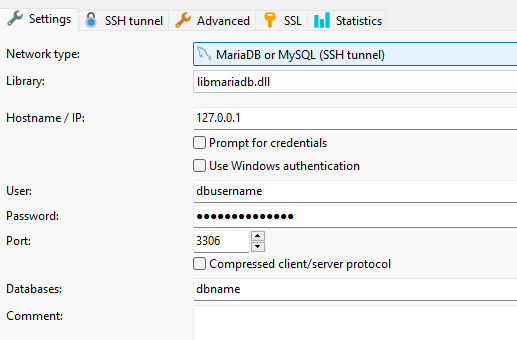
5. In your Remote MySQL client (I’m using HeidiSQL) set these:
- Hostname/IP:
127.0.0.1
- User -
DB username
- Database -
DB Name
- Port
3306
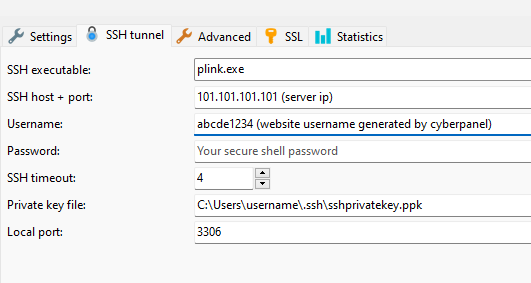
- SSH Tunnel - username: your website user (e.g.
abcde1235) that is generated by CyberPanel., target the Private Key File that which was created previously in the video. However, you will probably need a “.ppk” file version of it. Look around online on how to set that up. Putty has a Putty Generator tool to make one, for example.
More generally, you could and should be using an SSH key to connect to your server rather than using passwords. You should create a new linux system user who has sudo privileges, then connect with the video’s instructions to put your public key in the user’s /home/user/.ssh folder. And then turn off Root Login and PasswordAuthentication with nano /etc/ssh/sshd_config.
This is probably not quite complete/perfect, but it should be a good start. Give it a try and let us know what did/didn’t work and then we can make a Doc out of it.
Edit: The first two steps don’t actually seem to be necessary. Perhaps it is the way in which I am connecting with an SSH Key. Seems safer to not open them up beyond localhost/127.0.0.1 if it isn’t necessary.